2022年8月3日星期三

dxf_export settings

 We have a customer that requires that all AuroCAD DWG files have cetrain layer named per their list, same goes for color and linetypes. I have managed to make color and linetypes show up correct in DWG file. Only problem left is that I cannot force Creo to export layers per my settings (deja vu anyone).

What I did so far is the following:

I set "intf_out_layer" to "part_layer"

I set "intf2d_out_dxf_mapping_file" to "dxf_export.pro" file

Here is the dxf_export.pro file:

map_colorBACKGROUND_COLOR186
map_colorDIMMED_COLOR9
map_colorLETTER_COLOR2
map_colorHIGHLIGHT_COLOR2
map_colorEDGE_HIGHLIGHT_COLOR2
map_colorGEOMETRY_COLOR3
map_colorHIDDEN_COLOR6
map_colorSHEETMETAL_COLOR7
map_colorCURVE_COLOR7
map_colorVOLUME_COLOR7
map_colorSECTION_COLOR135
map_colorPRESEL_HIGHLIGHT_COLOR7
map_colorSELECTED_COLOR7
map_colorSECONDARY_SELECTED_COLOR 7
map_colorPREVIEW_GEOM_COLOR7
map_colorSECONDARY_PREVIEW_COLOR 7
map_colorDATUM_COLOR4
map_colorQUILT_COLOR2

map_layerDXF_AXISCEN
map_layerDXF_CONTINUOUS_LINEOBJ
map_layerDXF_HIDDEN_LINEHID
map_layerDXF_DIMENSIONDIMS
map_layerDXF_TEXTDIMS
map_layerDXF_HATCHINGHATCH
map_layerDXF_TABLEDIMS
map_layerDXF_BALLOONDIMS
map_layerDXF_FORMATDIMS

map_line_style solidfontbylayer
map_line_style phantomfontPHANTOM
map_line_style ctrlfontCENTER
map_line_style hiddenfontHIDDEN
map_line_style bylayerfontbylayer
map_line_style dashfontbylayer
map_line_style ctrlfont_s_lbylayer
map_line_style ctrlfont_s_sbylayer
map_line_style ctrlfont_l_lbylayer
map_line_style dashfont_s_sbylayer
map_line_style phantomfont_s_sphantom
map_line_style ctrlfont_mid_lbylayer

map_fontfontsimplex.shx
map_fontfilledbigfont.shx
!map_fontisofontarial.ttf
map_fontisofontisocp.shx

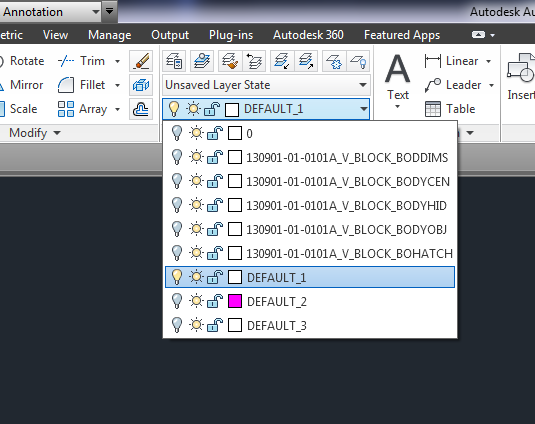
And this is what I get:

acad.png

As you can see, Creo exported layers and added part number names in front of map_layer names. This is because "intf_out_layer" is set to "part_layer". There are also some of the layer named DEFAULT_1, 2 and 3 which have entities that are not specified in dxf_export.pro file. This is my guess.

I found setting "intf_out_layer_rename_table" but I could not find anything on internet on what this is and how to use it.

So, is there any additional settings that I should set to get layers as set per dxf_export.pro file? Also, what other map_layer values I am missing in this file?

Thank you in advance.

P.S. I have one more problem. Although entities are placed in right layer, object color is set to particular color instead of ByLayer, but I think I can/will solve this in AutoCAD. Is it possible to assign color of layer in dxf_export.pro file?


PROE转CAD时,图层、颜色、线型的转换设置

 XISHUMOJU 2018-05-25   |  168阅读  |  3转藏
转藏全屏朗读分享
 PROE转CAD时,图层、颜色、线型的转换设置
PROE, CAD, 线型, 颜色, 设置
config.pro
将 intf_out_layer 值为 part_layer 后,输出到 dwg/dxf 文件时系统将图元详细分类自动产生不同的图层并自动命名,
命名语法为: (Part_name)_  
默认图层名称: (part_name)_Dxf_Axis                        
所有轴线 (part_name)_Dxf_Continuous_Line   
连续线 (part_name)_Dxf_Hidden_Line         
隐藏线 (part_name)_Dxf_Dimension            
尺寸标注 (part_name)_Dxf_Text            
文本批注 (part_name)_Dxf_Hatching     
剖面线 (part_name)_Dxf_Table               
表格 (part_name)_Dxf_Ballon  
球标符号 (part_name)_Dxf_Format               
图框 Dxf_export.pro  
文件的设置: 可以自定义图层名称、线条颜色、线型等,不再受 Pro/E默认。
语法有三种: 自定义图层名称: map_layer           
( 默认图层名称 )                  
( 自定义名称 ) 自定义线条颜色: map_color           
(Pro/Engineer 系统颜色 )     (AutoCAD 系统颜色 ) 自定义线型:      
map_line_style    (Pro/Engineer 线型名称 )   
   (AutoCAD 系统线型名称 ) Pro/Engineer 系统颜色名称如下: Pro/E 颜色名称                        
   Pro/E 默认颜色         
AutoCAD 系统对应名称 LETTER_COLOR                           黄色                            2 HIGHLIGHT_COLOR                    红色                             1 GEOMETRY_COLOR                    白色                             7 DIMMED_MENU_COLOR             浅灰                             9 EDGE_HIGHLIGHT_COLOR         蓝色                             140 HIDDEN_COLOR                         黑灰色                         8 VOLUME_COLOR                        洋红                             6 SECTION_COLOR                       青色                             4 SHEETMETAL_COLOR                绿色                             3 CURVE_COLOR                          褐色                            40 BACKGROUND_COLOR              深蓝色                         5 Pro/Engineer 系统线型名称: 隐藏线         Hidden 实线            Geometry 导引线        Leader 虚线            Phantom
Pro to CAD
config.pro 将 intf_out_layer 值为 part_layer 后,输出到 dwg/dxf 文件时系统将图元详细分类自动产生不同的图层并自动命名,命名语法为: (Part_name)_ 默认图层名称:
(part_name)_Dxf_Axis           所有轴线  
(part_name)_Dxf_Continuous_Line   连续线
(part_name)_Dxf_Hidden_Line     隐藏线  
(part_name)_Dxf_Dimension       尺寸标注  
(part_name)_Dxf_Text           文本批注  
(part_name)_Dxf_Hatching       剖面线  
(part_name)_Dxf_Table         表格  
(part_name)_Dxf_Ballon         球标符号  
(part_name)_Dxf_Format       图框  
Dxf_export.pro 文件的设置: 可以自定义图层名称、线条颜色、线型等,不再受 Pro/E默认。语法有三种:
自定义图层名称: map_layer     ( 默认图层名称 )         ( 自定义名称 )
自定义线条颜色: map_color     (Pro/Engineer 系统颜色 )   (AutoCAD 系统颜色 )  
自定义线型:   map_line_style   (Pro/Engineer 线型名称 )   (AutoCAD 系统线型名称 )
Pro/Engineer 系统颜色名称如下:
Pro/E 颜色名称             Pro/E 默认颜色     AutoCAD 系统对应名称
LETTER_COLOR             黄色             2  
HIGHLIGHT_COLOR         红色             1
GEOMETRY_COLOR         白色             7  
DIMMED_MENU_COLOR       浅灰             9
EDGE_HIGHLIGHT_COLOR     蓝色             140  
HIDDEN_COLOR           黑灰色           8  
VOLUME_COLOR           洋红             6
SECTION_COLOR           青色             4
SHEETMETAL_COLOR       绿色             3  
CURVE_COLOR           褐色             40
BACKGROUND_COLOR       深蓝色           5  
Pro/Engineer 系统线型名称:
隐藏线     Hidden  
实线       Geometry
导引线   Leader
虚线       Phantom  
Pro to cAD 2  
中心线   Centerline
AutoCAD 系统的颜色是用数字作名称的
系统颜色   名称  
红色     1  
黄色     2  
绿色     3  
青色     4  
深蓝     5  
洋红     6  
白色     7  
深灰色   8  
浅灰色   9  
...     ...
AutoCAD 系统的线条样式:
实线   Solidline  
虚线   Dashed  
中心线   Center  
点画线   Dashdot  
双点画线 Divide  
点线   dot  
...   ...
例如:希望所有的尺寸线转到 AutoCAD 后自动形成一个图层 dim ,只要在文件中写一行:
map_layer Dxf_dimension _dim  
记住编辑好 Dxf_export.pro 文件后,此文件的路径在config.pro里设置参数,:dxf_export_mapping_file   =X:\。。\Dxf_export.pro


教程讲解在proe中如何输出正确格式的autocad格式文件,包括dwg和dxf的输出;
config.pro 将 intf_out_layer 值为 part_layer 后,输出到 dwg/dxf 文件时系统将图元详细分类自动产生不同的图层并自动命名,
命名语法为: (Part_name)_ 默认图层名称:
(part_name)_Dxf_Axis           所有轴线   
(part_name)_Dxf_Continuous_Line   连续线
(part_name)_Dxf_Hidden_Line     隐藏线   
(part_name)_Dxf_Dimension       尺寸标注  
(part_name)_Dxf_Text           文本批注   
(part_name)_Dxf_Hatching       剖面线   
(part_name)_Dxf_Table         表格   
(part_name)_Dxf_Ballon         球标符号  
(part_name)_Dxf_Format       图框  
Dxf_export.pro 文件的设置: 可以自定义图层名称、线条颜色、线型等,不再受 Pro/E默认。语法有三种:
自定义图层名称: map_layer     ( 默认图层名称 )         ( 自定义名称 )
自定义线条颜色: map_color     (Pro/Engineer 系统颜色 )   (AutoCAD 系统颜色 )  
自定义线型:   map_line_style   (Pro/Engineer 线型名称 )   (AutoCAD 系统线型名称 )
Pro/Engineer 系统颜色名称如下:
Pro/E 颜色名称             Pro/E 默认颜色     AutoCAD 系统对应名称
LETTER_COLOR             黄色             2  
HIGHLIGHT_COLOR         红色             1
GEOMETRY_COLOR         白色             7  
DIMMED_MENU_COLOR       浅灰             9
EDGE_HIGHLIGHT_COLOR     蓝色             140  
HIDDEN_COLOR           黑灰色           8  
VOLUME_COLOR           洋红             6
SECTION_COLOR           青色             4
SHEETMETAL_COLOR       绿色             3  
CURVE_COLOR           褐色             40
BACKGROUND_COLOR       深蓝色           5  
Pro/Engineer 系统线型名称:
隐藏线     Hidden  
实线       Geometry
导引线   Leader
虚线       Phantom  
Pro to cAD 2  
中心线   Centerline
AutoCAD 系统的颜色是用数字作名称的
系统颜色   名称   
红色     1   
黄色     2  
绿色     3  
青色     4  
深蓝     5  
洋红     6  
白色     7   
深灰色   8   
浅灰色   9  
AutoCAD 系统的线条样式:
实线   Solidline  
虚线   Dashed  
中心线   Center  
点画线   Dashdot  
双点画线 Divide   
点线   dot   
...   ...  
例如:希望所有的尺寸线转到 AutoCAD 后自动形成一个图层 dim ,只要在文件中写一行:
map_layer Dxf_dimension _dim   
记住编辑好 Dxf_export.pro 文件后,此文件的路径在config.pro里设置参数,:dxf_export_mapping_file   =X:\。。\Dxf_export.pro


PRO/E工程图转到CAD中,总是出现这样那样的毛病
PRO/E毕竟是国外的软件,和国内的一些标准有很大的不同.:工程图的线宽都一样,图层分得也不是很清楚,等等
要想解决这些问题,你只需将config.pro 中的 intf_out_layer 的值设为part_layer就好啦!
工程图转成DXF格式后,在CAD中你就可以随意编辑线宽啦!  


PRO/E转AUTOCAD时,图层、颜色、线型的转换设置config.pro 将 intf_out_layer 值为 part_layer 后,
输出到 dwg/dxf 文件时系统将图元详细分类自动产生不同的图层并自动命名,命名语法为: (Part_name)_ 默认图层名称:  
(part_name)_Dxf_Axis               所有轴线  
(part_name)_Dxf_Continuous_Line   连续线  
(part_name)_Dxf_Hidden_Line       隐藏线  
(part_name)_Dxf_Dimension         尺寸标注  
(part_name)_Dxf_Text               文本批注  
(part_name)_Dxf_Hatching         剖面线  
(part_name)_Dxf_Table             表格  
(part_name)_Dxf_Ballon             球标符号  
(part_name)_Dxf_Format           图框  
Dxf_export.pro 文件的设置: 可以自定义图层名称、线条颜色、线型等,不再受 Pro/E默认。语法有三种:  
自定义图层名称: map_layer       ( 默认图层名称 )             ( 自定义名称 )  
自定义线条颜色: map_color       (Pro/Engineer 系统颜色 )   (AutoCAD 系统颜色 )  
自定义线型:     map_line_style   (Pro/Engineer 线型名称 )     (AutoCAD 系统线型名称 )  
Pro/Engineer 系统颜色名称如下:  
Pro/E 颜色名称                   Pro/E 默认颜色       AutoCAD 系统对应名称  
LETTER_COLOR                   黄色                   2  
HIGHLIGHT_COLOR             红色                   1  
GEOMETRY_COLOR             白色                   7  
DIMMED_MENU_COLOR         浅灰                   9  
EDGE_HIGHLIGHT_COLOR       蓝色                   140  
HIDDEN_COLOR                 黑灰色                 8  
VOLUME_COLOR                 洋红                   6  
SECTION_COLOR               青色                   4  
SHEETMETAL_COLOR           绿色                   3  
CURVE_COLOR                 褐色                   40  
BACKGROUND_COLOR         深蓝色                 5  
Pro/Engineer 系统线型名称:  
隐藏线       Hidden  
实线         Geometry  
导引线     Leader  
虚线         Phantom

Pro to cAD 2
中心线     Centerline  
AutoCAD 系统的颜色是用数字作名称的:  
系统颜色     名称  
红色       1  
黄色       2  
绿色       3  
青色       4  
深蓝       5  
洋红       6  
白色       7  
深灰色     8  
浅灰色     9  
...       ...  
AutoCAD 系统的线条样式:  
实线   Solidline  
虚线   Dashed  
中心线   Center  
点画线   Dashdot  
双点画线 Divide  
点线   dot  
...   ...  
例如:希望所有的尺寸线转到 AutoCAD 后自动形成一个图层 dim ,只要在文件中写一行:  
map_layer Dxf_dimension _dim  
记住编辑好 Dxf_export.pro 文件后,此文件的路径在config.pro里设置参数,:dxf_export_mapping_file   =X:\。。\Dxf_export.pro 

=========================


proe工程图转CAD如何实现保持线条颜色?具体步骤如下:

1、新建一文本文件,复制一下内容(红色字体),然后保存D:\PRO\dxf_export.pro(保存途径根据自己定),注意:不要保存为TXT文件,此为文本文件,保存类型为所有文件,文件名为:dxf_export.pro

map_color LETTER_COLOR 2
/*黄色
map_color HIGHLIGHT_COLOR 1
/* 红色
map_color GEOMETRY_COLOR 7
/* 白色
map_color DIMMED_MENU_COLOR 9
/* 浅灰色
map_color EDGE_HIGHLIGHT_COLOR 3
/* 绿色
map_color HIDDEN_COLOR 255
/* 黑灰色
map_color VOLUME_COLOR 206
/* 紫红色
map_color SECTION_COLOR  100
青色
map_color SHEETMETAL_COLOR 108
/*深绿色
map_color CURVE_COLOR  5
/* 蓝色
map_color SKETCH_COLOR 4
/*浅蓝
map_color DATUM_COLOR  36
/*深褐色
map_color QUILT_COLOR  6
/*洋红色
map_color BACKGROUND_COLOR 250
/*黑色
map_color HIDDEN_LINE_COLOR 8
/*深灰色

2、在proe配置文件中写入一行“dxf_export_mapping_file D:\PRO\dxf_export.pro”,然后重启proe就能生效

那这个dxf_export.pro文件里的内容是什么意思呢?这个可能很多人不太清楚,举个林例子:

map_color LETTER_COLOR 2

map_color是默认的自定义颜色语句开头

LETTER_COLOR 为PROE里黄色

2 为CAD里的默认的索引颜色,也是黄色(如果是1,就代表红色,前提是你在PROE里使用颜色使用的是系统的颜色)

关于CAD的索引颜色,可看下图:

CAD索引颜色

2022年7月31日星期日

NX Center line setting

 The customer default options for controlling most of the default settings for drafting objects are found by editing the drafting standard, and then saving the edits. Here's where the standard is located in the Customer Defaults dialog:

  1. Choose File→Utilities→Customer Defaults.
  2. In the Customer Defaults dialog box, select the Drafting→General/Setup node→Standard tab.

  3. From the Drafting Standard list, select a standard.

  4. Click Customize Standard.

Once you enter the drafting standard settings, you can find options for controlling the center mark under the Annotation-->Centerline node.

In order to save the changes, you'll need Write permission to the drafting standards file you're editing. Or you can save a custom version of the file. Just remember to use that custom standard when you set up your template.

Here's a link to more information about using and customizing drafting standard files:


--------------------------------------------------------------------------------------------

Setting your Drafting and PMI standard

NX provides a set of drafting standards default files that configure the appearance of specific annotation and drafting view objects in accordance with defined national or international drafting requirements. For example, the format size (height and length) and scale of annotation, the drawing units, and the orthographic projection angle settings are standards driven defaults. The drafting standards default files let you set, or reset, Drafting and PMI annotation and view preferences with minimal effort.

NX supports the following standards:

  • ASME

  • DIN

  • ESKD

  • GB

  • ISO

  • JIS

  • Shipbuilding

You can use the installed standard, set a default standard for future NX sessions, or you can edit and save any standard to create your own custom standard.

You can also import and use custom standards that you created in a previous release, in the current release.

Where do I find it?

To set the standard for the current NX session:

Application

Drafting

Menu

Tools→Drafting Standard

To set the default standard or create a custom standard:

Command Finder

Customer Defaults

Menu

File→Utilities→Customer Defaults

Location in dialog box

Drafting→General/Setup→Standard tab

2022年7月25日星期一

How to remove slope analysis in nx9


Start the analysis -> shape -> slope command and deselect the faces (shift + click); I suggest holding down Shift and rectangle/lasso selecting the entire model. It may not look like anything has changed on the model, but when you press OK (or Apply) the "analysis coloring" will disappear.

www.nxjournaling.com

2022年7月23日星期六

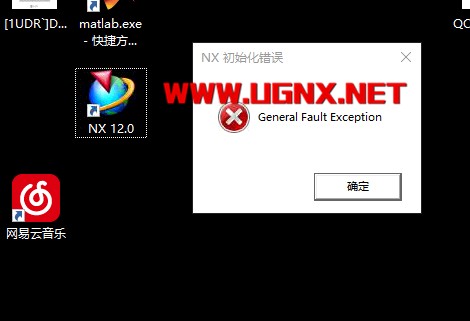
UG12.0安装 出现 General Fault Exception 是硬件还是软件问题


2021
07/06
17:39
评论
0

UG12.0安装 出现 General Fault Exception 是硬件还是软件问题一般有很多种情况:

NX初始化错误:General Fault Exception,的意思一般是NX软件安装没有问题,但是在NX软件启动时,加载第三方数据、软件、驱动、硬件的时候出现异常,导致NX软件无法初始化。当你遇到这个问题的时候,请根据这些方面去排查原因。

1、自己操作失误,或者杀毒软件造成的,特别是360杀毒软件会拦截软件的注册表操作。

解决办法

方法A,删除UG的注册表,或者关闭相关的杀毒软件和防火墙;

(1)打开C:\Windows\regedit.exe的注册管理器,可以直接复制到文件管理器的地址栏里面打开

(2)找到注册表HKEY_CURRENT_USER\Software\Unigraphics Solutions\NX,找到后删除出错对应版本的ug版本。如果只有一个版本,可以直接删除nx这个注册表项。

(3),删除后,重新启动电脑,xp系统必须重新启动,系统启动好后,等电脑反应过来后再打开UG试试,正常情况下基本会成功。要是不成功,说明有可能没安装好,或者文件损坏。

B、代码删除注册表.

(1)在桌面空白处右键新建一个txt空文本,命名后缀为bat的一个文件。(如果看不到后缀,在文件管理器里面查看里面设置,显示扩展)

(2)以上新建好后,右键编辑加入以下代码,并保存,保存好后,右键此文件用管理员运行。注意:要是有杀毒软件拦截修改注册,必须通过,否则无效。结束后重新电脑注册才能生效。

2、UG和你电脑上安装的NX外挂有冲突;

卸载外挂之后便可以直接启动,或者可以安装支持UG对应版本的外挂。

本问题由NX外挂引起的原因比较多,注意这几个环境变量,如有的话先将其删除再测试:

UGII_USER_DIR

UGII_VENDOR_DIR

UGII_GROUP_DIR

注意检查用户变量和系统变量,有些人喜欢把变量添加在用户变量里。

3、显卡驱动的问题;

解决办法:下载驱动人生、驱动精灵之类的驱动更新软件,更新到最新版本重启电脑试试,如果还是不行可以更新更旧版本的显卡驱动,在驱动更新软件里可以选择,降到更低版本的驱动以后再重启电脑试下。

如果依旧不能解决,则说明不是以上问题造成的初始化失败,主寻找其它问题。

4、电脑的硬件问题,没有什么不是重装系统解决不了的,有其他的更好的解决方式可以一起分享,学习就是这么简单,关注公众号UG编程CNC数控加工,更多UG小技巧分享,关注我,每天学习一点,进步一点


==========================


UG NX初始化错误:General Fault Exception

我安装的是NX12.0版本,安装都正常,在启动软件以后,出现画面,然后就弹出:NX初始化错误:General Fault Exception. 这到底是怎么回事?

attachments-2019-10-t3iWmtX25db82a66550db.png

2 个回答

老叶 - NX网、学技网、UG爱好者论坛创始人
擅长:NX软件

这个问题是各种原因导致NX软件启动时无法初始化,有多种原因。

1、一般和安装了不兼容的外挂和系统驱动程序不兼容导致无法使用。可以尝试卸载外挂,删除外挂环境变量可以。如果是驱动问题,可以更新理新版或者更旧版的驱动,安装完驱动要记得重启电脑。

经过对楼主电脑实际查看,发现你的显卡是HD ATI显卡,在电脑设备管理器显示适配器选项里可以看到,有两张显卡,禁用其中一张显卡就可以了。

如果电脑只有一张显卡,或者禁用了其中一张显卡NX软件可以打开,但软件工作时非常非常卡无法工作,那就只能安装显卡驱动或者更换显卡了,没办法,这是硬伤,是你的显卡与NX软件不兼容导致的。

2、检查有没有安装一些不兼容的外挂,有的话先卸载看看,主要是查看环境变量,有UG外挂环境变量可以删除。

3、NX程序文件丢失或者被修改损坏等造成NX软件无法初始化。

秦时明月

我的把HUBO删了就好了,多谢

liao8888

怎么删?

Lzc

怎么删?

空谷幽兰

环境变量删除HUBO

请先 登录 后评论
小蚂蚁

NX 1872也出现这个问题,还有就是开机后许可证要好久才能启动,导致低版本UG开机不能直接打开,需要等好久,装1872前没这问题,不知是电脑配置问题还是设置问题

amethyst4567

开机好久许可服务才启动,明显的,服务管理里面设置了延时启动或者你的第三方优化软件设置了延时启动

liao8888

我也是这个版本的,你的是怎么处理?

请先 登录 后评论

2022年7月7日星期四

Top Plate, Stripper Plate,Sprue Bush and Runner Lock Pin Design


at the picture below you will see a set of Top plate until stripper plate design related with runner flow, at this picture support pin exclude. the mold type in this picture is 3 plate type.

the runner system accommodates the molten plastic material that coming from barrel, and guide it into mold cavity, the dimension, configuration, shape, and system connection with mold cavity will affect filling process.


as see from that picture, red plate indicate isolated plate, it's doesn't matter you use isolated plate or not, but you must see more in injection machine, if it needed isolated plate give it. number 1 and 2 in black plate it's indicated top plate for number 1 and stripper plate for number 2, those picture shown 3 open mold type.
after injection, in ejection process stripper plate will open because puller bolt pull it( not include at those picture).

runner ejector set will needed to push runner, after ejection, but if you use arm robot or manual take the runner by hand operator it doesn't needed. runner ejector set always contains spring, those spring will push pin in ejector set and will push the runner.

runner lock pin function is to pull runner when ejection begin still in top plate, if runner adhere in stripper plate, the robots or operator will difficult to take the runner, because no ejection system for runner in stripper plate.

when design the runner system and ejection system for runner in 3 plate type of mold you should use those mold accessories.